Geisinger CE logo, Joint Accreditation logo, How does CE define your activity banner

What is the Continuing Education Program mission?

Go to Continuing Education Program - Home to learn more.


Where can I learn more about Joint Accreditation?

Go to Joint Accreditation & Additional Credit Information to learn more.


How does CE define my activity type?

Open the How does CE define your activity file to learn more.


My Account/Profile

Register button

How do I create an account?

  • Click Register found on the top right corner of the home page.
  • Complete the form to create a new account.
  • Reminder: Create only one account in this learning management system.
Login button

How do I log into my account?

  • Click on the Login found on the top right corner of the home page.
  • If you are a Geisinger employee, click the SSO Login button in the middle of the page.
  • If you are a non-Geisinger employee, click the Visitor Login button in the middle of the page. Enter a username and password into the text fields.
My account button

How do I edit my account?

  • Once logged in, click on My Account found on the top right corner of the home page.
  • Once on the My Account page, click the Edit tab to make updates or changes.
My account button

How do I edit my Mobile Number?

  • Once logged in, click on My Account found on the top right corner of the home page.
  • Once on the My Account page, click the Edit tab.
  • Click on the Mobile sub-tab.
  • Edit the mobile Phone number.
  • Select a Country.
  • Click the Confirm Number button.


Forgotten Username/Password

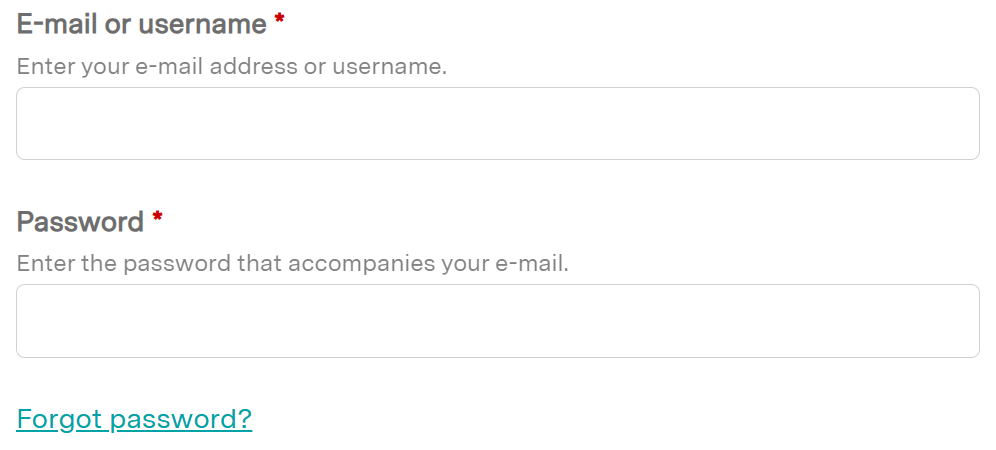
Visitor Login screen with Forgot password text

How do I reset my password?

  • Follow the Forgot password prompt or Have you forgotten your password? given when the incorrect password is entered
    OR
    From an activity, click Register and choose Request new password.


Registration

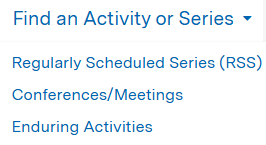
Find an Activity or Series Navigation drop-down

How do I search for and register for a course?

  • Select Find an Activity or Series in the navigation or use the Search bar to find an activity, course, or series.
    TIP: If the activity list is long, use the filters.
  • Click on the activity or series name.
  • If you are looking for a Series session from a series Home page, select Sessions in the left navigation. Then, scroll down into the description of the session and click the Register text.
  • If you are looking for an activity or course, select the Register/Enroll tab. Then, follow the prompts to start.


Certificates/Transcripts

My account button

How do I download my transcript or certificate?

  • Once logged in, hover over My Account found next to Home in the navigation.
  • Select the Transcript sub-tab.
  • Use the Download a pdf button for Completed, Pending, or External credit activities.
My account button

Where can I view my credits from past courses?

  • Once logged in, hover over My Account found next to Home in the navigation.
  • Select the Transcript sub-tab.
  • Choose Completed activitiesPending activities, or External credits.
  • Credits from past courses can be searched by title or within a date range.
My account button

How do I add external credit awarded outside of the organization?

  • Once logged in, hover over My Account found next to Home in the navigation.
  • Select the Transcript sub-tab.
  • Choose External credits.
  • Click the Add Credits text.
  • Type in the Course name, Date Completed, Credit type (if known), and Credit hours. A certificate may be uploaded as well.
  • Click the Save button.
  • Confirm that the external credit entered now appears on the page. The data may be downloaded as a PDF.


Course Information

Question mark with generic character

Will a course save my progress if I need to step away and return to it later? 

  • Yes, it will automatically save your progress.
Clipart of hand holding an evaluation

Will a quiz/evaluation save my progress if I need to step away and return to it later? 

  • Quizzes/Evaluations will not save your progress unless you click the Save Progress option.
My account button

How do I return to an activity I’ve already registered for and resume it?  

  • Once logged in, hover over My Account found next to Home in the navigation.
  • Select the Pending Activities sub-tab.
  • Click the activity title as appropriate.
  • Click Take course.
  • Click Resume course.


IT Information

Various browser icons

Which Browser should I use for the EthosCE website?

  • Ethos CE works with most modern web browsers (e.g., Chrome, Internet Explorer, MS Edge, Safari), though we recommend Google Chrome.

Adobe PDF logo

Do I need to have Adobe Reader to participate in a course?

  • A PDF reader, such as Adobe Acrobat Reader, may be required to participate in some courses.