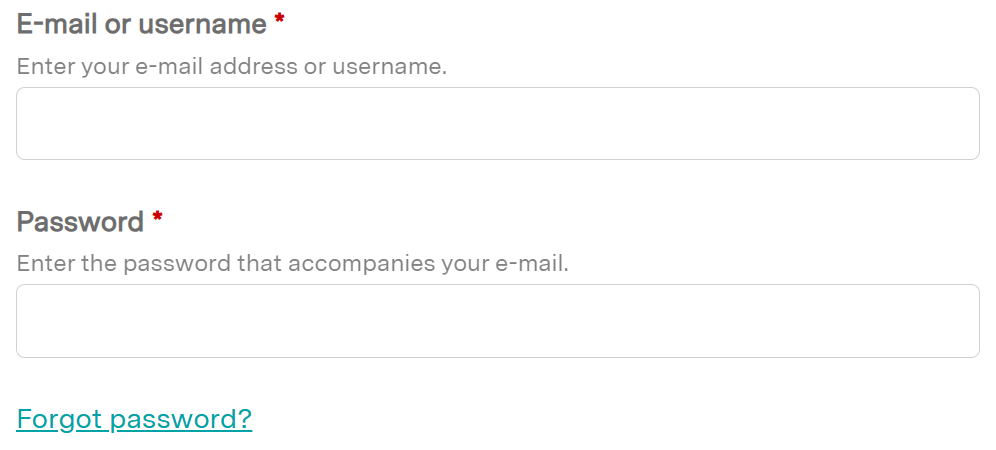
Access denied. You must login to view this page.
My Account/Profile
 | How do I create an account?- Click Register found on the top right corner of the home page.
- Complete the form to create a new account.
- Reminder: Create only one account in this learning management system.
|
 | How do I log into my account?- Click on the Login found on the top right corner of the home page.
- If you are a Geisinger employee, click the SSO Login button in the middle of the page.
- If you are a non-Geisinger employee, click the Visitor Login button in the middle of the page. Enter a username and password into the text fields.
|
 | How do I edit my account?- Once logged in, click on My Account found on the top right corner of the home page.
- Once on the My Account page, click the Edit tab to make updates or changes.
|
 | How do I edit my Mobile Number?- Once logged in, click on My Account found on the top right corner of the home page.
- Once on the My Account page, click the Edit tab.
- Click on the Mobile sub-tab.
- Edit the mobile Phone number.
- Select a Country.
- Click the Confirm Number button.
|
Forgotten Username/Password
 | How do I reset my password?- Follow the Forgot password prompt or Have you forgotten your password? given when the incorrect password is entered
OR From an activity, click Register and choose Request new password.
|
Registration
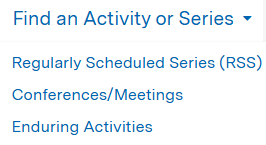
 | How do I search for and register for a course?- Select Find an Activity or Series in the navigation or use the Search bar to find an activity, course, or series.
TIP: If the activity list is long, use the filters. - Click on the activity or series name.
- If you are looking for a Series session from a series Home page, select Sessions in the left navigation. Then, scroll down into the description of the session and click the Register text.
- If you are looking for an activity or course, select the Register/Enroll tab. Then, follow the prompts to start.
|
Certificates/Transcripts
 | How do I download my transcript or certificate?- Once logged in, hover over My Account found next to Home in the navigation.
- Select the Transcript sub-tab.
- Use the Download a pdf button for Completed, Pending, or External credit activities.
|
 | Where can I view my credits from past courses?- Once logged in, hover over My Account found next to Home in the navigation.
- Select the Transcript sub-tab.
- Choose Completed activities, Pending activities, or External credits.
- Credits from past courses can be searched by title or within a date range.
|
 | How do I add external credit awarded outside of the organization?- Once logged in, hover over My Account found next to Home in the navigation.
- Select the Transcript sub-tab.
- Choose External credits.
- Click the Add Credits text.
- Type in the Course name, Date Completed, Credit type (if known), and Credit hours. A certificate may be uploaded as well.
- Click the Save button.
- Confirm that the external credit entered now appears on the page. The data may be downloaded as a PDF.
|
Course Information
 | Will a course save my progress if I need to step away and return to it later? - Yes, it will automatically save your progress.
|
 | Will a quiz/evaluation save my progress if I need to step away and return to it later? - Quizzes/Evaluations will not save your progress unless you click the Save Progress option.
|
 | How do I return to an activity I’ve already registered for and resume it? - Once logged in, hover over My Account found next to Home in the navigation.
- Select the Pending Activities sub-tab.
- Click the activity title as appropriate.
- Click Take course.
- Click Resume course.
|
IT Information
 | Which Browser should I use for the EthosCE website?Ethos CE works with most modern web browsers (e.g., Chrome, Internet Explorer, MS Edge, Safari), though we recommend Google Chrome.
|
 | Do I need to have Adobe Reader to participate in a course?- A PDF reader, such as Adobe Acrobat Reader, may be required to participate in some courses.
|